I readily admit it...I am a horrible blogger! I have the best intentions, but most do not come to fruition.
I am a connected educator. I'm on Twitter, Facebook, Google+, LinkedIn, Pinterest...the list goes on & on! There is so much information to find and share out there, and I spend most of my time finding that information and sharing with others. This is in addition to lesson planning for Kindergarten (if you're a K teacher, you know how fast-paced and full a K day is), being a wife, a mom, a friend, a District Technology Coach, and a TRIG Coach. I love all of it!
The place that this all falls apart is my blog, which is connected to all of the sites I've listed above. So if you're someone who is checking out my profile, please don't get the wrong idea. I love making connections IRL and virtually, so if you're looking to find out more about me and the knowledge I love to share, then search me out there. I'm hoping to have more time for my blog and to keep up on it, but I'm just not sure where to find it!
Twitter:https://twitter.com/TechyTeacher1
Facebook: https://www.facebook.com/AdventuresOfATechyTeacher
Google+:https://plus.google.com/+SandraFreeland
LinkedIn: http://www.linkedin.com/pub/sandra-freeland/6a/324/96a
Pinterest: http://www.pinterest.com/techyteacher1/

Showing posts with label technology in education. Show all posts
Showing posts with label technology in education. Show all posts
Friday, March 21, 2014


Monday, November 11, 2013
miGoogle Conference-Day 2
Day 2 of the miGoogle Conference was amazing! This was the first conference that I presented at. Of course, I had to go first thing, but I think that was great because everyone was excited and ready to learn. I presented about using Google Drive to blend learning in the lower elementary classroom. My slides & information can be found here.
As with any presentation process, I believe it is important to gather feedback on the presentation. My feedback was mostly good, but it definitely takes guts to put yourself out there to be analyzed and critiqued by your colleagues and peers, especially those you've just met for the first time!
If you didn't make it out for the miGoogle conference, you definitely missed out on a great opportunity to collaborate with other excited members of Michigan's educational workforce. Please visit http://www.miedtech.com for more information about this year's presentations.
As with any presentation process, I believe it is important to gather feedback on the presentation. My feedback was mostly good, but it definitely takes guts to put yourself out there to be analyzed and critiqued by your colleagues and peers, especially those you've just met for the first time!
If you didn't make it out for the miGoogle conference, you definitely missed out on a great opportunity to collaborate with other excited members of Michigan's educational workforce. Please visit http://www.miedtech.com for more information about this year's presentations.
Monday, November 4, 2013
miGoogle Conference
Today's post is coming to you from the miGoogle Conference pre-conference workshops at Brighton High School!
I'm joining a full session of educators, IT specialists, media specialists and others learning how to become a Google Certified Trainer. Presenter John R. Sowash is walking us through the application and training process to become GCT certified. We are getting ready to start digging deeper into each Google Apps product that is covered in the testing process.
I'm excited to share more about this adventure with you later today. I'm even more excited to present at the Second Annual miGoogle Conference tomorrow! I'll be presenting about blended learning in the elementary classroom using Google Apps. Click HERE to learn more about my session.
I'm joining a full session of educators, IT specialists, media specialists and others learning how to become a Google Certified Trainer. Presenter John R. Sowash is walking us through the application and training process to become GCT certified. We are getting ready to start digging deeper into each Google Apps product that is covered in the testing process.
I'm excited to share more about this adventure with you later today. I'm even more excited to present at the Second Annual miGoogle Conference tomorrow! I'll be presenting about blended learning in the elementary classroom using Google Apps. Click HERE to learn more about my session.
Saturday, April 27, 2013
Discovery Education-A Techy Teachers Dream for Content and PD!
Hello friends! I hadn't realized that it has been so very long since I posted an update on my adventures! Please forgive me. I've been so very busy learning about new ways of integrating technology, building my PLN on twitter (awesome), and managing my Facebook page, that I knew I was leaving something out.
I had the pleasure of attending the Discovery Education Day of Learning at my local ISD a few weeks back. Following this I attended DEN Spring VirtCon 2013. There was a tremendous amount of very useful information presented by amazing presenters! Learning about how others use technology in their classrooms was the best part. Second best was participating in a conference (in my PJ's) that had over 2400 people attending! Today I'd like to briefly share some of the information I learned during these Discovery Education Network learning days. There is so much to cover that my following blog posts will discuss this information in more detail.
I had the pleasure of attending the Discovery Education Day of Learning at my local ISD a few weeks back. Following this I attended DEN Spring VirtCon 2013. There was a tremendous amount of very useful information presented by amazing presenters! Learning about how others use technology in their classrooms was the best part. Second best was participating in a conference (in my PJ's) that had over 2400 people attending! Today I'd like to briefly share some of the information I learned during these Discovery Education Network learning days. There is so much to cover that my following blog posts will discuss this information in more detail.
Discovery Education Day of Learning
Teachers at my school (including myself) have, for the most part, used our Discovery Streaming accounts to find engaging science and social studies videos for our students to watch within a specific lesson or at inside recess time. Our tech PLC, our Kindergarten teachers, and our Library Media Specialist learned that Discovery Education services provide SO MUCH MORE than just videos! We learned how to dig deep within the Discovery Education website to find images files, sound bytes, lesson plans, professional development and more! It was amazing! We even used images from DE to create a PhotoPeach slideshow (great web 2.0 tool). One of our teachers brought this idea back to her 2nd grade students. They used images to create a PhotoPeach about matter. They had a great time, were engaged in their learning, and went deeper within the content than they might have otherwise. Please check back in the coming days/weeks for some instructional photos and examples of the resources to be found within this gem of a site!DEN Spring VirtCon 2013
As I said above, over 2400 people gathered in F2F and virtual meetings to attend this Virtual Conference (VirtCon). There were many different sessions that one could attend and three keynote speakers. It was so difficult to choose what sessions to attend! Thankfully ALL of the sessions are video archived here. I attended the following sessions:- Opening Keynote: Connecting Classroom & Community with Project Based Learning (PBL) by Susie Boss
- Digital Storybooks for Digital Kids by Mary Carole Strother (tech difficulties, but I have a website to direct you to)
- Globalizing Gen Z through Social Media and Web Tools by Kathy Beck
- Midday Keynote: Imagining Future Friendly Schools: Technology, Global Citizenship, and Student Voice by Michael Furdyk
- Connected from the Start: Global Learning in the Elementary by Kathy Cassidy
- iPads for Projects with Discovery Media by Karen Ogen
- Closing Keynote: Selling the 7 "C's" of Connections by Jennifer Wagner
Believe me, each of these sessions deserve a blog post of their own. I won't even come close to doing any of these presenters justice by briefly going over what I learned. It was so worth it to attend. I hear there is a Fall VirtCon too...you can bet I'll be there! Will you?
Again, please check back in the coming days/weeks to see what I have to share. If you have a chance check out the archived video sessions from the VirtCon. You won't be disappointed!
Upcoming...
In the days ahead, besides keeping my promise to elaborate on the DE learning I've been part of, I will be attending A Day of Learning: iPads on SimpleK12's website on Saturday, May 4, 2013. I'll also be traveling to Boyne City Elementary to tour their school and see how the teachers their implement 1:1 iPads. I'm so excited!
Thursday, March 21, 2013
A Day of Learning at MACUL 2013
Wow! I had an amazing day at MACUL today! The
best part of the day was learning with my friend and watching her excitement
about all of the new ideas and techniques that she learned. I can't wait to
share some of the new technologies that I've learned about today with my
coworkers, my students, and all of you!
KEYNOTE SPEAKER
The Keynote speaker today was Kevin Honeycutt @kevinhoneycutt.
He did an amazing job of discussing how we can be the motivators for our
students. He described how we can influence our student’s lives through our
dedication and engagement techniques. He explained how twitter can help us
teach our students how to develop their inner filter process. One idea that
Kevin shared was that using apps and social platforms like Edmodo helps us to
provide a safe place that our students can rehearse their social behaviors
before they create their own online presence. It was a very informational,
inspiring, and humorous hour!
ADVANCED iMOVIE TECHNIQUES
The next session I attended was presented by Jon
Corippo @jcorippo and
Andy Losik @mrlosik.
They are both ADE’s and presented a very enlightening session on advanced
techniques for iMovie. Most of the discussion centered on iMovie and Keynote
for the Mac, which I am new to, but they also discussed how these techniques
can be used on the iPad, which I’m more familiar with. I learned about how to
use a green screen, the difference between digital storytelling and cinematic
narratives, and the best types of equipment to use. I would love to begin to
implement a news program with my elementary kids. I’m so inspired by these two
guys and all of the new techniques I’ve just learned!
APPLE TECHNOLOGIES, iTUNES U, & THE BEST APPS FOR TRANSFORMING
STUDENT AND STAFF LEARNING IN A ONE-TO-ONE SCHOOL
Fred Sitkins, Principal, and Rebecca Wildman,
4th Grade Teacher, both from Boyne City, presented this program. They recently
implemented a 1:1 initiative in their school. Staff from
my elementary school recently visited their school to get ideas as we rollout
our 1:1 program. They are amazing! There was so much I learned here, but the
point that sticks out most for me is how to create iTunes U lessons. Rebecca
created units for her 4th graders and posts them to iTunes U.
This way her students can download them on their iPads before they leave
school. Whether they have Wi-Fi at home or not, now they can complete their
homework at home using their iPad. This is a great idea. Check out Rebecca’s
lessons on iTunes U by browsing the K-12 section of the catalog and selecting
Boyne City Schools.
DON’T BE THUNDERSTRUCK WITH TODAY’S TECHNOLOGY
Mindy Lynch and Tracy Lemkie, teachers from
Ravenna Public Schools, shared their tips and trick for electrifying digital
learning in their elementary classrooms. They shared information about Pixie,
Edmodo, Voki, BrainPop, and MANY apps! These ladies are funky & spunky!
They provided an inspirational and motivating session that was topped off with
great swag! Check out Mindy Lynch’s blog at http://blogs.muskegonisd.org/mlynch
OSX AND iOS TOOLS FOR STUDENT SUCCESS
Mark Coppin is the Director of Assistive
Technology at Anne Carlsen Center in North Dakota. He is an ADE who graced us
with his presence and his plethora of knowledge on accessibility options on
iPad and Mac devices. He provided so much information about the wonderful
features of Apple devices and how they can be implemented in the classroom and
for personal use. Check out the handouts he shared with us here!
THAT’S IT FOR THURSDAY!
I had a great day, but I’m on information
overload! I’m looking forward to getting some rest and getting started again
tomorrow morning. Check back here for more information about my activities at
MACUL 2013.
Wednesday, March 20, 2013
It's Here! MACUL 2013!

I am so very excited to be attending MACUL (Michigan Association of Computer Users and Learners) in Detroit. The pre-conference began today. The full conference begins tomorrow. I'm looking forward to soaking up technology information, networking with like-minded individuals, and increasing the size and knowledge base of my PLN
Our school has begun the roll-out of 1:1 iPads for K-5 and MacBooks for 5-12. As the mindset of our teachers shifts from traditional teaching and learning to being a guide on the side that integrates technology into multi-subject lessons and student-led PBL, the demand for educators that are able to effectively implement 21st Century learning techniques grows. I am proud to be of assistance to my peers and excited to build my knowledge base through wonderful learning opportunities like MACUL.
If you are attending MACUL, you should see Erin Klein's MACUL post on her blog, Kleinspiration, for tips and tricks you should know when attending this conference. If you are attending other conferences you should still check it out because she provides some wonderful pre-planning ideas.
I am looking forward to being able to share with all of my followers the amazing information that I will learn over the next two days. Please check back for more updates in the days to follow!
Tuesday, February 12, 2013
Free Books for Web, iPads & Android Devices
I thought those of you with iPads & Android Tablets might be
interested to know that there is a book app similar to Storia for the
iPad. It is called MeeGenius. You can find info about it here: http://www.meegenius.
With personal accounts, just like Storia, you get so
many books free and then have to purchase others. BUT...if you sign up
for a school account you get access to the books for FREE! When you go
to http://www.meegenius.com/,
click on School Accounts in the upper right hand corner of your screen,
then fill out the Request Free Account form. MeeGenius will read these
books to your students or your students can read them to themselves.
Once you request an account it can take a little
while (it took them a week and half for my request) to get your info
from the company. Once you do, you can have students read the books on any computer as well as any device that the app is installed on. You will log-in here: https://www.meegenius.
This is a great resource to use in your classroom, especially if you've been using Tumble Books, Storia or similar reading sites.
If you have any questions please feel free to ask!
Saturday, February 9, 2013
Test Prep Ideas and a Linky Party!

Adrianne Meldrum from The Tutor House is hosting a Test Prep Linky Party at her blog! She has been kind enough to invite me to contribute to this Linky!
Test Prep
I taught 2nd grade for one full year last year. I began the Words Their Way program with my students and every Friday my students took a spelling/phonics skills test. Every day students would rotate through word study groups during Daily 5 time. Since the test was given Friday, Thursdays would be our test prep day. Since so many students love to learn through games, my students would prepare for Friday's test with a game of ZAP! If you haven't played ZAP! before, please know it is SO easy to organize and play!
ZAP!
1. Using the Words Their Way blank templates (or the ones I've created that you can access here), write or print ZAP! on 5 or 6 cards.
2. Combine ZAP! cards with the spelling/phonics words in a cup/container. Make sure it is not see-through.
.
3. Have students sit in a circle.
4. Have one student hold the cup while the student to their left draws a word. The student then says the word (you can also have them find the sort category it would belong in, or address any other skill your test will be over).
5. If the student answers correctly, they get to keep the card. If not, then they put it back and the cup is shaken to mix the words up.
6. When a student draws a ZAP! card, they have to put all of their words back into the cup!
7. The student(s) with the most words at the end of the round wins!
My second graders loved this game! It is ideal for small group, but can also be done whole class.
Jeopardy
Earlier this year I helped prepare a Jeopardy game for a staff meeting at my school. We had recently received some data and my Principal asked if I could make the review fun. We are in the process of beginning a 1:1 program, so I wanted to use our iPads as answer boards for our staff to write their responses on. This way the iPads were in their hands and they could see how simple it is to use this educational tool. I went to Jeopardy Labs and created my own, iPad friendly, Jeopardy game. It is free, non-PowerPoint based, and very easy to use. You can select up to 12 teams and keep track of their scores. I projected the game from my iPad and the teacher groups used Doodle Buddy to write their responses to the questions. They had a great time!
There are so many fun and engaging ways to prepare for tests with your students. Check out the Linky above to see more. Thanks for stopping by!
Sunday, January 27, 2013
Professional Development
Whenever I have a question, I tend to go to the professionals out there...my fellow teachers and bloggers. These are the people that are using the technology or resources that I am seeking answers about. TeachThought had a post about the 52 education blogs that you should follow. Many of these bloggers I have already been following, but others I have just added to my PLN. Check out the blog post and expand your Professional Learning Network.
Saturday, January 12, 2013
Google Forms
Google Forms are an amazing free tool! If you haven't used them yet, I highly recommend it. I use Google Forms to keep track of my tutor sessions and tutor payments. Once I enter information into the fields and hit submit, it transfers my information into a Google Spreadsheet. I can sort this information by student, session date, session topics, payment date, or payment amount. I can keep track of how much I make in a month or in the year. I can print my spreadsheet to give a statement to my tutor parents at the end of the year for tax time. I love this tool!
Google Forms can be created to keep track of homework assignment submissions, behavior observations, or for assessment purposes if you have access to technology for your students. On a mobile device in your classroom? No problem! Google Forms can be emailed and installed on the home screen of mobile devices. I have an iPad and keep my tutor form on the home screen for instant access as I need it.
Let me walk you through creating a Google Form for anything in your life!
The first thing you need to do is sign in (or create if you don't have one) to your Google account. The next step is to choose Drive in your Google bar at the top of the screen.

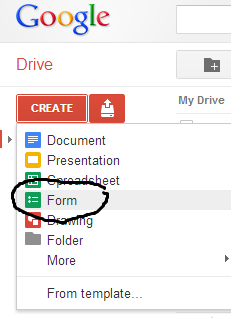
Once inside your Drive, you will need to click the "Create" button, then select Form.


Google Forms can be created to keep track of homework assignment submissions, behavior observations, or for assessment purposes if you have access to technology for your students. On a mobile device in your classroom? No problem! Google Forms can be emailed and installed on the home screen of mobile devices. I have an iPad and keep my tutor form on the home screen for instant access as I need it.
Let me walk you through creating a Google Form for anything in your life!
The first thing you need to do is sign in (or create if you don't have one) to your Google account. The next step is to choose Drive in your Google bar at the top of the screen.
Once inside your Drive, you will need to click the "Create" button, then select Form.
Follow the picture below to create your own Google Form!
When you are finished, click save. That's it! Click on any of the pictures to see a close up.
Please comment below if you have any questions about Google Forms or to share your success stories!
Monday, December 31, 2012
Learnist
Hello Friends! It's my last post for 2012. Happy New Year to you all! I'm looking forward to a very prosperous and enjoyable 2013 for myself, my family and all of you.
Where Pinterest gives users ways to "pin" websites and photos to their "boards", Learnist creates a timeline of possible learning for users. Users follow other Learnist users and can follow the "learnings," or posts/pins, of other users in a linear fashion. Learnings can be checked off as they are completed and can be commented on by other learners. In a sense it's kind of like Pinterest and Wikipedia got together and had a brain child called Learnist!
As an educator that tends to be more elementary focused, I feel that I would be more likely to use Learnist for professional development and personal learning than I would promoting use with my students. I am relatively new to this site, so I've been following and not posting. Once I feel more comfortable interacting with the site I will start creating learnings for others to follow (click here to follow TechyTeacher1 on Learnist). For more on how educators are using Learnist see Mind Shift's blog post.
I feel that Learnist is definitely an up and coming way for educators to collaborate and share. I've found some great iPad learnings, which will be a benefit when our Title I and Special Ed programs launch the iPads after January 2nd. Either way, its worth checking out and seeing whether you will personally benefit from this free service!
Learnist
Last time I posted I discussed Pinterest and shared my Pinterest boards. This time I'd like to introduce Learnist. Learnist has been likened to "Pinterest for Educators." Learnist is a fairly new education, collaboration, and professional development tool. It was created by Grockit (the well-known test prep company) and released on May 24, 2012. For more on Learnist see Hack Education's post about its launch.Where Pinterest gives users ways to "pin" websites and photos to their "boards", Learnist creates a timeline of possible learning for users. Users follow other Learnist users and can follow the "learnings," or posts/pins, of other users in a linear fashion. Learnings can be checked off as they are completed and can be commented on by other learners. In a sense it's kind of like Pinterest and Wikipedia got together and had a brain child called Learnist!
As an educator that tends to be more elementary focused, I feel that I would be more likely to use Learnist for professional development and personal learning than I would promoting use with my students. I am relatively new to this site, so I've been following and not posting. Once I feel more comfortable interacting with the site I will start creating learnings for others to follow (click here to follow TechyTeacher1 on Learnist). For more on how educators are using Learnist see Mind Shift's blog post.
I feel that Learnist is definitely an up and coming way for educators to collaborate and share. I've found some great iPad learnings, which will be a benefit when our Title I and Special Ed programs launch the iPads after January 2nd. Either way, its worth checking out and seeing whether you will personally benefit from this free service!
Thursday, December 27, 2012
Collaboration and Technology Learning
Pinterest!
I absolutely LOVE Pinterest! It is a great way to collaborate with other teachers/educators throughout the world. We can be globally connected to each other and work together to make education more engaging for our 21st Century learners. Of course, I pin so much more than just technology ideas and education ideas. I use Pinterest for many, many subjects. You can search for me on Pinterest (username: techyteacher1) or you can choose from my technology boards below. If you haven't began a Pinterest account yet, you are missing out!Follow my technology boards on Pinterest!
Classroom Technology Ideas: https://pinterest.com/techyteacher1/classroom-technology-ideas/
iPad in the Classroom: https://pinterest.com/techyteacher1/ipad-in-the-classroom/
Education Blogs: https://pinterest.com/techyteacher1/education-blogs/
Websites for Students: https://pinterest.com/techyteacher1/websites-for-students/
EduTech: https://pinterest.com/techyteacher1/edutech/
Technology (general technology information): https://pinterest.com/techyteacher1/technology/
Until next time my friends,
~Sandy
Monday, December 17, 2012
Converting Word docs to Google Drive docs
Today I was working with the grade level team that I will be joining shortly on a long term sub job. They were working on a curriculum map for ELA and were wanting to work collaboratively. I suggested that they upload it to Google Drive and share it. That way they could all work together. I love Google Drive and the ability it gives to people to work together on projects. I used Google Slides with my 2nd graders last year to create presentations about landforms. It was amazing to watch them work simultaneously! I digress. I suggested that this team use Google Drive to upload the Word document and convert it to a Google Doc to collaboratively work on it. It didn't work at school for some reason, but I was able to get it to upload and convert at home.
Interestingly enough, one of my favorite tech bloggers, Richard Byrne at Free Technology for Teachers, blogged about this exact topic today! Check out his step-by-step instructions for converting Word docs to Google Drive docs.
Until next time,
Sandy
Interestingly enough, one of my favorite tech bloggers, Richard Byrne at Free Technology for Teachers, blogged about this exact topic today! Check out his step-by-step instructions for converting Word docs to Google Drive docs.
Until next time,
Sandy
Tuesday, December 11, 2012
Video Viewing in the Classroom
How many educators have tried to pull up a YouTube video in the classroom, but find that the ads or suggested videos and video titles are inappropriate for students? There is a way to use YouTube in the classroom without all of the extra stuff that you find on the YouTube site!
This also works on the iPad using Safari or Chrome (and I'm sure with any other web browser as well). Great for protected mobile video browsing!
www.youtubeforchildren.com

Until next time my friends!
~Sandy
YouTube for Children
This browser is child and classroom friendly. Enter the search parameters you are looking for into the search box. This website will find matching information/videos, as well as block inappropriate content. Once a video is selected, the video will play in a new window without the extra ads. There are some small pop-up ads (for business and such) that display on the videos, but you are able to exit out of them and they are not inappropriate. This is a great way to incorporate educational videos and/or brain break videos in your classroom!This also works on the iPad using Safari or Chrome (and I'm sure with any other web browser as well). Great for protected mobile video browsing!
www.youtubeforchildren.com
Until next time my friends!
~Sandy
Tuesday, December 4, 2012
Teaching and Technology
Tech in Education
As a techie and an educator I am constantly thinking about how technology and education can go hand in hand. As our world continues its path down the information superhighway we have to adapt our lessons to incorporate the tools that our students frequently use, as well as the tools they will be exposed to in the future.One important point we need to pay attention to as educators is the planning. It's one thing for teachers know how to use a device personally, it's another thing all together to incorporate it into the classroom or any other educational setting. We need to remember that we want our students actively engaged in the learning process, not just playing games to use up class time.
Another important point is that we need to know is where we are going with the implementation. For example, how does it optimize learning and maximize engagement while minimizing distractions? What do we want our students to accomplish by using this tool, app, etc.?
While perusing my education PLN's I found the following graphic. It provides great habits that all teachers that incorporate technology should have. Thanks to Angela Maiers for featuring it.

In closing, remember, planning is essential to implementation of technology in an education setting. Using the previous habits you can be a highly effective teacher who effectively implements technology in your classroom!
~Sandy
Subscribe to:
Posts (Atom)